As part of the training requirements, all users of the Notre Dame Nanofabrication Facility (NDNF) need an iLab account before gaining access to the facility for either self-use or staff-assisted use of the equipment. The iLab system is used for making reservations on the equipment, tracking actual time spent on equipment, and billing.
Already have an iLab account and your NDNF access badge?
In the upper-right corner of the screen, click "Register." In the drop-down, choose the option "Register using University of Notre Dame credentials."
Authenticate using your ND netID and password.
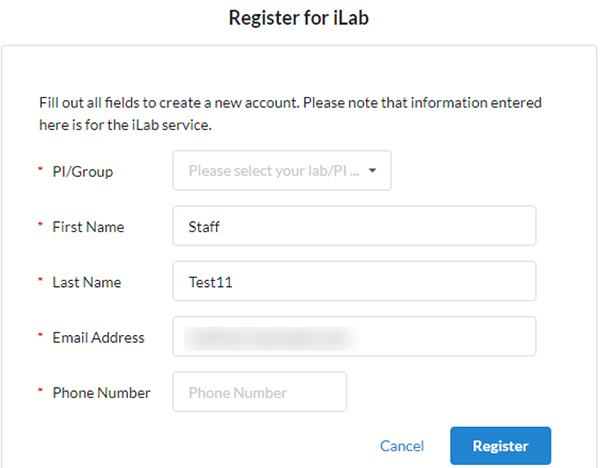
You will be directed to the Register for iLab page (see image). Select your PI/Lab from the drop-down and provide your contact information. (For students in the IC Fab course, please choose Alan Seabaugh’s group from the menu.) Search for the Notre Dame Nanofabrication facility and request access to it.
Click the "Register" button, and a greeting page will appear.
Once you have submitted your registration, your PI will receive an email notice that you have requested membership to their lab in iLab. (You can also click the button on the greeting page to send them a reminder.) The PI will approve your membership and assign you one or more university charge numbers (known as FOAPALs) for your use in the iLab system.
You will receive an email notice once the PI has approved your account. With your iLab account now established, you can "Sign In" in the future using the button at the top of this page to reserve time on the equipment and start/end your sessions.
Return to step 6 of the training requirements. When your NDNF orientation and equipment-specific training is completed, the NDNF staff will grant you access within iLab so you can begin making equipment reservations.
Complete the series of registration screens. Select your institution from the drop-down (see image) or "create" the institution in iLab as needed. Search for the Notre Dame Nanofabrication facility and request access to it.
You will receive a welcome email from iLab (typically within one business day) with login credentials. With your iLab account now established, you can "Sign In" in the future using the button at the top of this page to reserve time on the equipment and start/end your sessions.
Return to step 6 of the training requirements. When your NDNF orientation and equipment-specific training is completed, the NDNF staff will grant you access within iLab so you can begin making equipment reservations.
Create an Equipment Reservation in iLab
After you have received equipment-specific training and been given access to that equipment in iLab, you are ready to reserve time on the equipment. Navigate to the Nanofabrication Facility iLab page and "Sign In" in the upper-right corner using your ND netID and password.
Under the Schedule Equipment tab (see image), find the equipment you want to reserve in the list. Click on the name of the tool or the "View Schedule" button on the right.
Click and drag over the time frame for which you would like to schedule the equipment.
In the window that appears, verify/adjust your reservation, provide payment information by selecting the correct FOAPAL from the drop-down (ask your PI if needed), and add supplies to be used. At the bottom of the window, click "Save Reservation" to finish (see image).
Track Time on Equipment using iLab Kiosk
To start/end your session with an existing reservation
Under the "Schedule Equipment" tab, click on the "Go to Kiosk" button to view a list of your reservations in “All Kiosk Sessions”.
Find your desired session, and click the green “Start” button on the right. The reservation details and a timer will appear in the upper-right corner. You can now proceed with using the equipment.
When you are done using the equipment, return to iLab and click on the “Finish” button. Confirm your action in the pop-up by clicking “Finish session” again. Your time on the instrument has been logged.
To start/end your session without an existing reservation
Under the "Schedule Equipment" tab, click on the "Go to Kiosk" button to view a list of your reservations in “All Kiosk Sessions”.
On the left side, click the “Start Walkup Session” button.
Select the equipment you want to use in the list of Equipment by Category. A green check mark indicates which equipment is available.
A calendar for the availability will appear. Click “Create Session” to begin, select the desired duration, and click “Create Session” again.
A new window will appear with the details of your reservation. Provide payment information by selecting the correct FOAPAL from the drop-down (ask your PI if needed), and add supplies to be used.
Once all required information is filled out, click the "Start" button to begin your session. You can now proceed with using the equipment.
When you are done using the equipment, return to iLab and click on the “Finish” button. Confirm your action in the pop-up by clicking “Finish session” again. Your time on the instrument has been logged.
Additional help
For questions regarding the iLab software, your account, or equipment usage, please contact any of the NDNF staff for assistance.